Space – shared work, personal priorities
A Space groups the tasks of a project. Keep it just for yourself or invite a team. Choose Work or Personal for the Space; its tasks inherit that context.
Start small
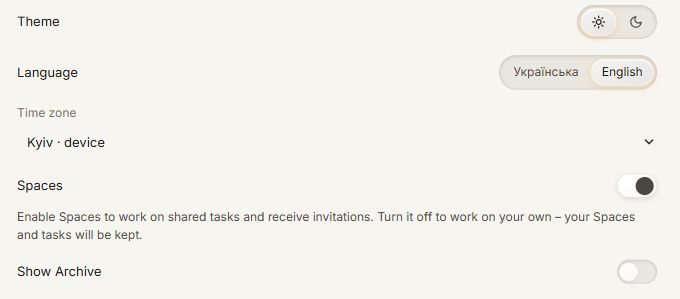
- To work as a team, all participants must have Spaces enabled in their account settings.
- Open Spaces on the vertical rail. Choose New Space and select its context.
- Invite someone using their Plynno account email. They need to accept the invitation. If they turned Spaces off, ask them to enable Spaces in Settings.
- Create a task and assign it. A private task only becomes shared when you select a Space in its card.
Space management fills the workspace. Choose a board on the rail or click Spaces again to return to tasks. Click the pencil beside Members to reveal available actions for the whole list. Removing a member requires confirmation in a popup.
Share the outcome, keep your own way of working
The title, description, date, status and subtasks are shared. Permissions depend on your role for that task.
| Action | Task author | Space owner | Assignee | Other member |
|---|---|---|---|---|
| Edit title, description and date | Yes | Yes | Yes | No |
| Reassign or clear assignment | Yes | Yes | Only if also author or owner | No |
| Take the task for yourself | Yes | Yes | Already assigned to you | Yes |
| Delete the task | Yes | Yes | Only if also author or owner | No |
| Complete an assigned task | Only if its assignee | Only if its assignee | Yes | No |
| Complete an unassigned task | Yes | Yes | – | Yes |
Every member can create a task and assign it to someone. Authorship remains after reassignment. Restore an archived task before editing or completing it.
Your quadrant, list order, Eat the Frog and Rule of Three choices stay private. Dragging a shared task into Today sets its date to today. Other members see the date change.
Selecting Spaces filters every board. Open Assignments to view tasks by assignee. Assignments groups tasks by assignee; creating a task in a column sets its Space and assignee automatically. Matrix and Timeline also show other members’ tasks. Place a colleague’s task in your own quadrant to track it privately without changing their priorities. Today also shows other members’ tasks dated today, within the active filters.
Assignments and completion
Assignments includes a No Space block for tasks outside Spaces. You can show it alongside other selected Spaces. Drag your own task from this block into a Space column to share it and assign it to that person, or leave it unassigned in Unassigned.
The finished card shows “Completed by: name”, identifying who actually completed it rather than its current assignee. Older completions recorded before this feature have no known completion author. Reopening and completing a task again records the new completion author.
Use Show completed in Timeline to see finished cards. Today automatically shows tasks completed today at the bottom. Matrix and Assignments show unfinished tasks only.
Keep discussion with the task
Use the description for the agreed outcome. Add questions, progress and replies to the comment thread; each message remains separate.
A new assignee sets their own priorities. Reassignment never copies the previous assignee’s private planning.
When you do not need Space
Disable it in Settings to hide the button and shared tasks, block new invitations and decline pending invitations. Existing memberships and shared tasks remain. Open Spaces on the rail to leave a Space. An owner first transfers ownership to another member or deletes the Space.
Disabling Space releases its tasks from Rule of Three slots. Other personal planning settings remain.
Deleting a Space
Click the pencil beside the Space name to enter editing mode and reveal Delete Space. Clicking it opens a popup explaining the consequences, with a separate confirmation button.
Only the owner can delete a Space. Tasks remain: assigned tasks move to their assignees under No space, and unassigned tasks move to their authors. If the author’s account has been deleted, the Space owner receives the task.
Text, dates, status, subtasks, archive status and discussion history are preserved. Each task keeps the Space’s Work/Personal category and the recipient’s own quadrant, if selected. It becomes a personal task; shared access and synchronization with former members end.
Task files
Open a task and choose Attach file. Add up to 3 files, 10 MB each: PDF, images, Office documents, TXT, CSV or ZIP. Create the task first, then attach its materials.
Personal attachments are visible only to the task owner; Space attachments are visible to members. Anyone who can edit the task can attach files. The uploader, task author or Space owner can remove them. Select a filename to download it, or the trash icon to delete it with confirmation.
Completed and archived tasks retain their existing files but cannot accept new ones. Moving a task or deleting its Space preserves attachments under the new access rules. Copies have separate attachment lists: deleting a file from one copy does not remove it from another.